

What you'll learn
- How to use Claude for real work, not just quick questions, by handing it a whole task and getting a finished file back
- What Projects, connectors, Skills and plugins are, in plain words, and when each one helps
- How to finish your first handed-off task safely, from a clear brief to a file you can actually use
If you have been wondering how to use Claude beyond asking it the odd question, this guide is for you. Claude is Anthropic's AI assistant, and in 2026 it changed a lot. You no longer pick between a "chat" mode and a "do the work" mode. You describe what you want, and Claude decides whether that needs a quick answer or a longer piece of work, like researching a topic, building a spreadsheet or drafting a slide deck. By the end of this guide you will have handed Claude one real task and got a finished result back.
No coding is needed at any point.
What you need
- A Claude account. The Free plan is enough for this guide's first task: on Free, Claude can still create a finished file, like a Word document, right in the chat. Free also includes connectors, Skills and up to five Projects. Handing off longer tasks that keep running in the background, scheduling tasks, Claude in Chrome and the Excel and PowerPoint add-ins all need a paid plan. Pro costs $20 a month billed monthly (or $17 a month billed yearly) at the time of writing. Check the current plans on Claude's pricing page.
- The Claude app on the web, desktop or your phone. The desktop app is worth installing if you want Claude to work with files on your computer.
- One small, real task from your week. A report, a summary or a tidy-up you would normally spend half an hour on is perfect.
- About 20 minutes.
How Claude works now
Since 16 September 2026, Anthropic has been rolling out what it calls "one Claude". What used to be Claude Cowork (the place you went to hand over bigger jobs) and normal chat are now one conversation. Anthropic explains the change in Claude Cowork and chat are one Claude.
A quick way to check whether you have it: if your message box still shows separate "Chat" and "Cowork" options, your account has not moved over yet. That is fine. When we checked in November 2026, Free accounts still showed both options, and choosing Cowork on Free asks you to upgrade. On Free, stay on Chat for this guide. On a paid plan that has not moved over yet, choose Cowork for bigger tasks.
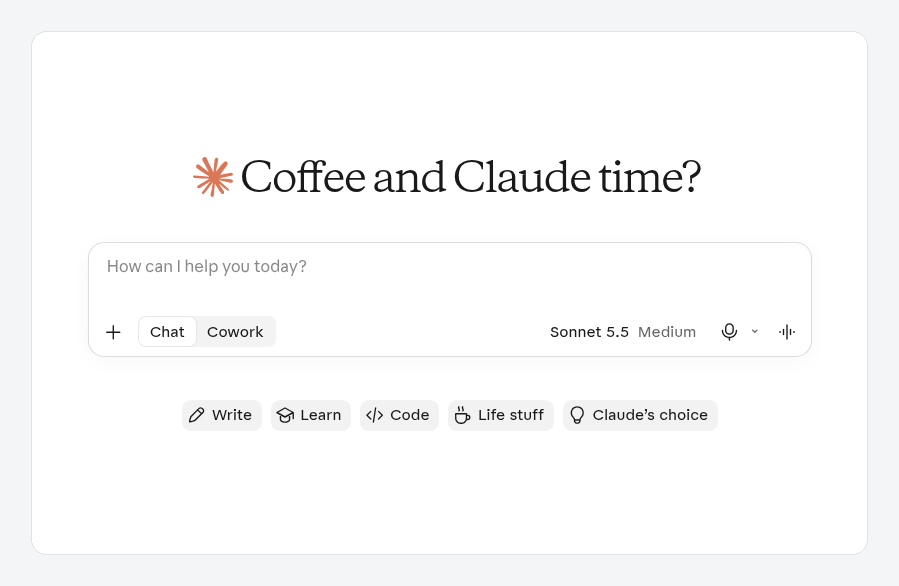
The new chat screen on a Free account. The separate Chat and Cowork options mean this account has not moved to the merged experience yet.
Here are the five ideas you will meet, in plain words.
- Handing off a task. Instead of asking a question and copying the answer, you describe an outcome ("a one-page summary of these notes, as a Word document") and Claude works through the steps on its own. On paid plans, longer tasks keep running in the cloud, so you can close your laptop and come back later.
- Project. A Project is a folder for related work. It holds files, instructions and context, so Claude does not need re-briefing every time. For example, a "Client newsletters" Project could hold your brand notes and last month's issues.
- Connector. A connector is a secure link between Claude and another app you use, such as Google Drive, Gmail, Microsoft 365 or Slack. Once connected, Claude can look things up in that app while it works.
- Skill. A Skill is a saved set of instructions that teaches Claude how you like a particular job done. Anthropic includes built-in Skills for Word, Excel, PowerPoint and PDF files, and you can add your own.
- Plugin. A plugin is a ready-made bundle of Skills and connectors for a role or task, so you can set up a whole workflow in one go. Plugins are a paid plan feature, though Free accounts can browse them.
You will also see Claude in Chrome (a browser extension that lets Claude read pages, click and fill in forms in your own Chrome browser) and Claude for Excel and PowerPoint (add-ins that put Claude in a sidebar inside those apps). Both come with paid plans. They are useful later, but you do not need them for your first task.
How to use Claude for your first handed-off task
Step 1: Pick a task with a clear finish line
Choose something where you will know when it is done. Good first tasks:
- "Turn these meeting notes into a one-page summary with actions and owners."
- "Compare three suppliers from these quotes and give me a table with a recommendation."
- "Draft a five-slide update on last month's sales from this spreadsheet."
Avoid anything that sends messages, spends money or deletes files for your first go. You want to see how Claude works before it touches anything important.
Step 2: Gather what Claude needs
Find the files or links the task depends on. You can attach files straight into the message box. If the files live in Google Drive or another app, you can connect that app instead.
To add a connector, open Customize in the left sidebar (on some newer accounts this is called Plugins) and choose the Connectors tab. Find the app, select the + button next to it and sign in to approve access. Only connect the apps this task actually needs.
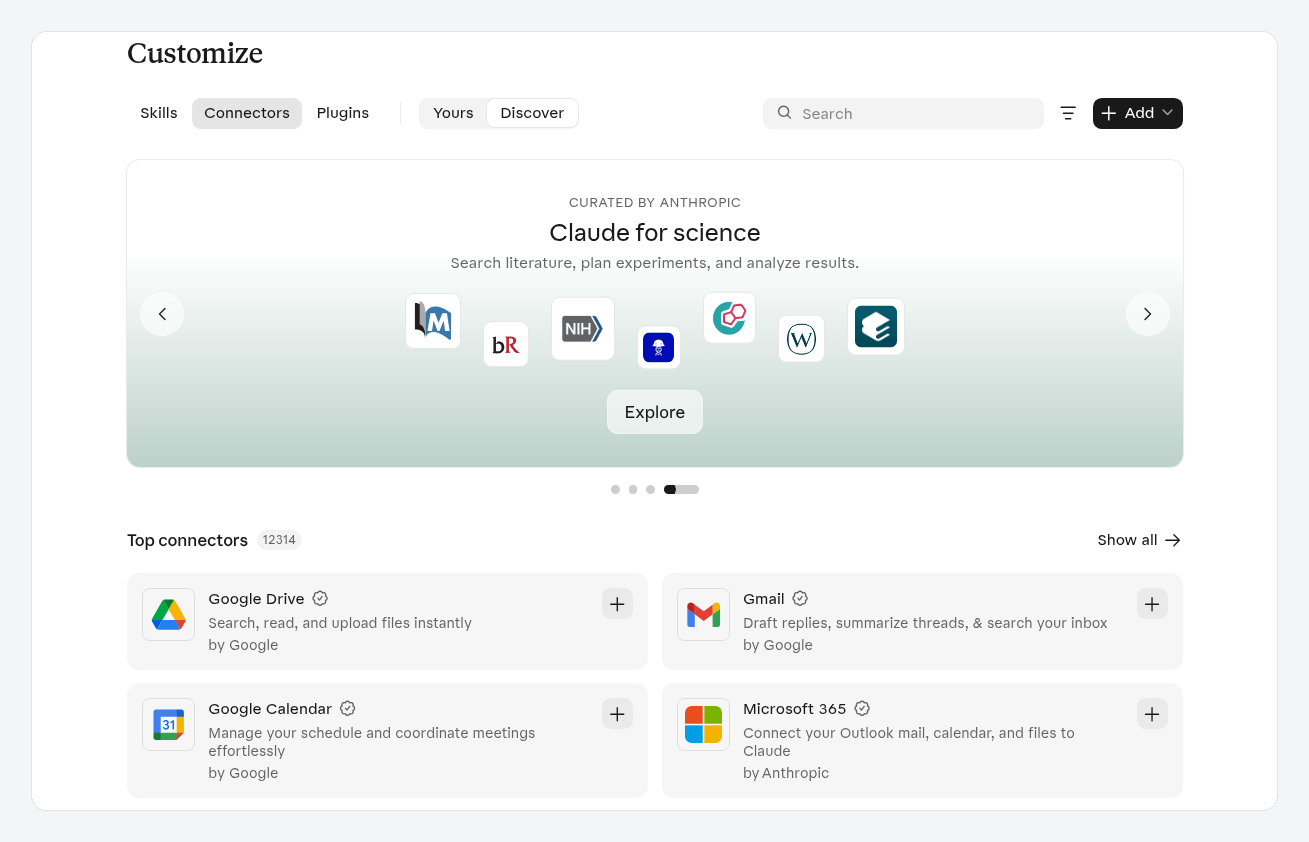
Customize, then Connectors, on a Free account. Select the + next to an app to connect it. On newer accounts the same list lives on the Plugins page.
Step 3: Write your brief like you are briefing a colleague
Anthropic's own advice is to include three things. Here is a brief you can copy and change:
I've attached my notes from Tuesday's team meeting. Please turn them into a one-page summary as a Word document. Use three headings: Decisions, Actions (with an owner and a date for each), and Open questions. Keep it under 400 words and use plain British English. Ask me if anything is unclear before you start.
Notice what it contains:
- The outcome: a one-page summary.
- The format: a Word document with three headings.
- The inputs: the attached notes.
The last line matters too. Inviting questions saves you from a confident but wrong result.
Step 4: Let Claude work, and watch the first time
Send the brief. For a quick job you will see the answer in seconds. For bigger jobs Claude shows a short status line under your message while it works, and then a one-line summary of what it did, such as "Ran 2 commands, read a file, shared files". You can open that line to see each step, and you can stop or redirect Claude at any time by typing in the conversation.
On paid plans, when Claude works through a longer task, there is a permission setting in the message box. Auto lets Claude keep working with automated safety checks before it acts, and it is becoming the default on personal plans. Manual makes Claude ask before each action. For your first task, either is fine, because nothing here sends or deletes anything. When a task does have real consequences, switch to Manual and stay close.
Step 5: Review, refine and download
When Claude finishes, it tells you what it made, and the file appears as a card in the conversation.
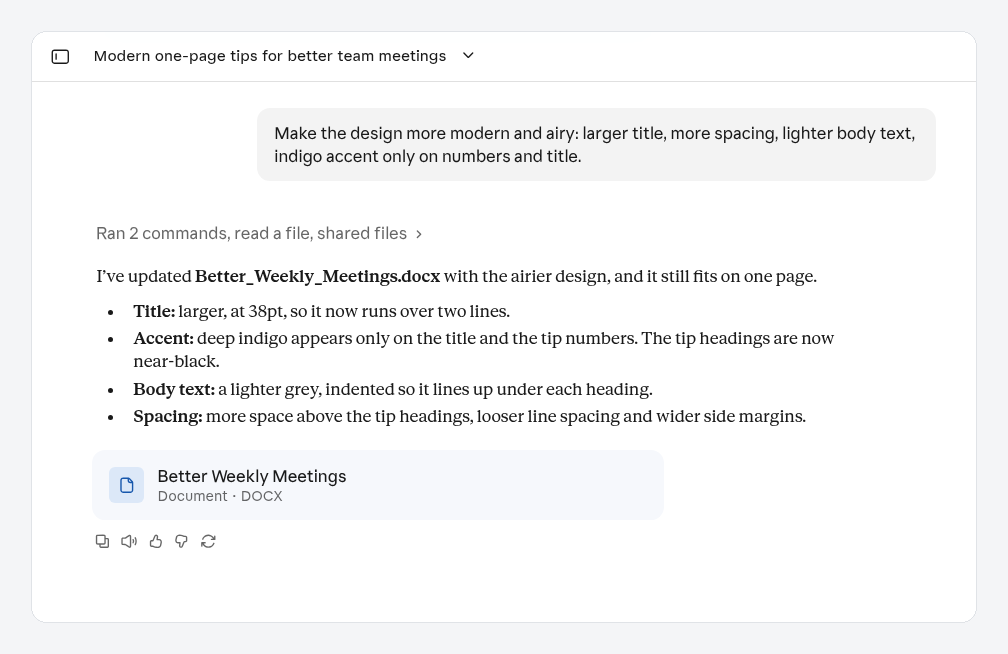
The finished result on the Free plan. Claude explains what it made, and the Word document appears as a file card you can open or download. Here we had also asked for a more modern, airy design.
Open the file and check it properly. Claude shows a preview beside the conversation, so you can check the layout before you download anything.
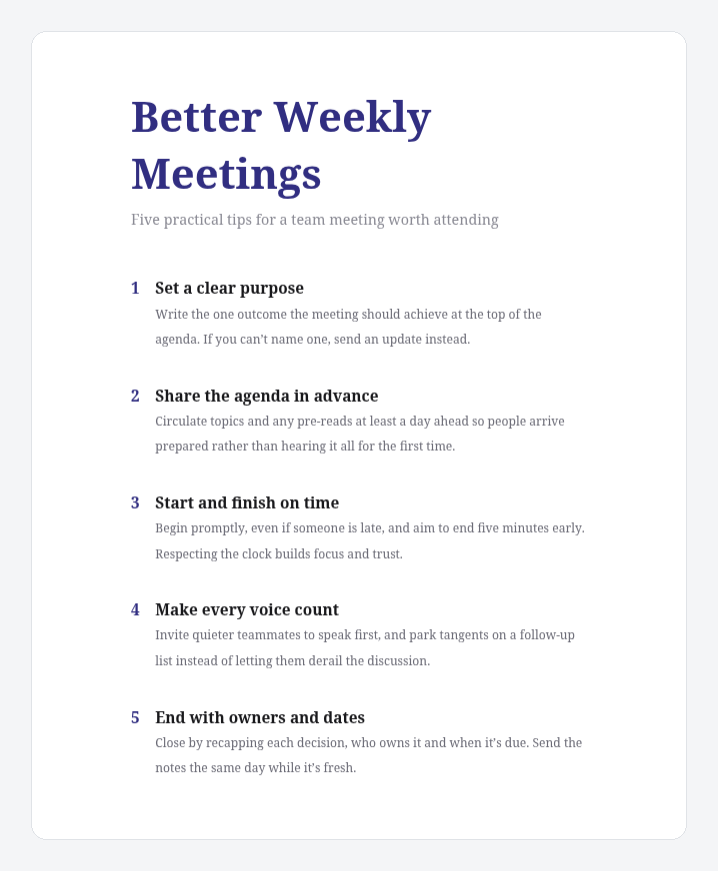
A close-up of the finished one-page document in Claude's preview, after asking for a lighter, more modern style.
Then ask for changes in plain words, for example "Make the actions a table", "Shorten the open questions to one line each" or "Make the design more modern and airy". When you are happy, download it and use it.
That is your first success: a real piece of work, briefed in one message and finished by Claude.
Step 6 (optional): Save the setup for next time
If this is a job you do often, make it easier next time.
Create a Project. Add your template or examples, and write short instructions such as "Always use our three headings". Open Projects in the sidebar and choose New project. Free accounts can have up to five.
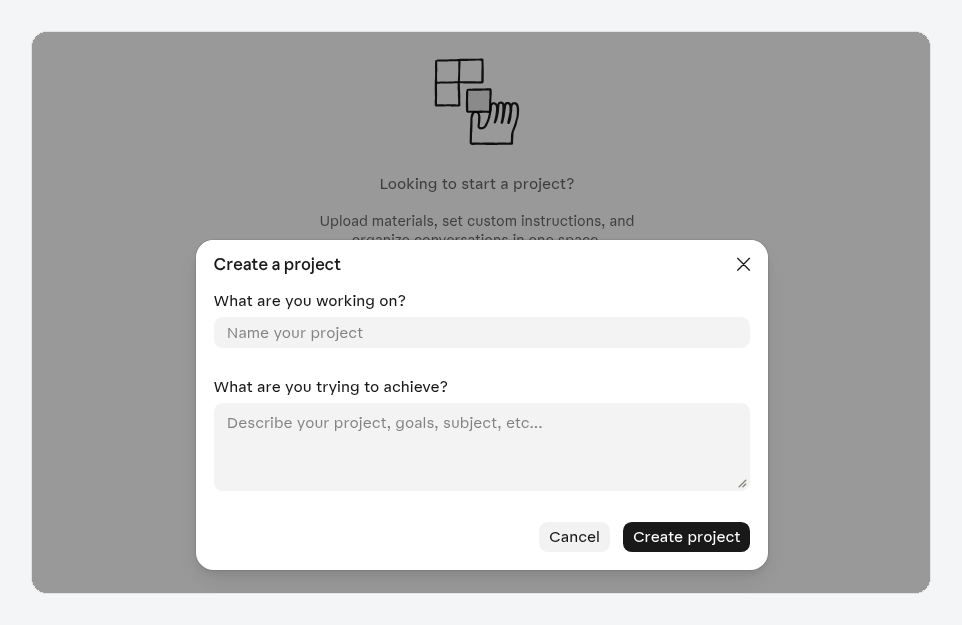
Creating a Project. Give it a name and describe the goal, then add your files and instructions.
Or put it on a schedule. On paid plans you can say something like "Every Monday at 9am, summarise last week's notes in my Drive folder", review the task Claude proposes, then choose Schedule. Scheduled tasks run in the cloud, so they keep going when your computer is off. Anthropic explains this in Schedule recurring tasks.
Common mistakes and staying safe
- Vague briefs. "Sort out my notes" gets a guess. Say the outcome, the format and the inputs.
- Connecting everything at once. Each connector gives Claude access to that app. Start with one, and only the ones a task needs.
- Not checking the result. Claude is good, but it can still misread a number or a name. Read anything before you send it to a client or your boss.
- Handing over sensitive actions too early. Keep tasks that send emails, make payments or change important files on Manual until you trust the workflow. By default, Claude asks before permanently deleting files on your computer, and you should keep it that way.
- Running out of usage. Longer tasks that search the web, run code or create files use more of your plan's limits than a quick question. You can check where you stand in Settings, under Usage.
- Sharing private data you do not need to. Only give Claude the files and apps the task needs. Anthropic's safety guidance is in Use Claude Cowork safely.
What's next
- If you used Claude Cowork before, or you keep seeing the name, read Where did Claude Cowork go? to see where each Cowork feature lives now.
- Wondering whether you need Claude or Claude Code? Claude vs Claude Code explains who each one is for.
- Anthropic's free Claude Academy has short official lessons if you want more practice.
Buildcamp's Claude for work course is coming soon. It takes you from this first task to complete workflows for small business, marketing, operations and teaching, with no coding. Join the waitlist at buildcamp.io to hear when it opens.